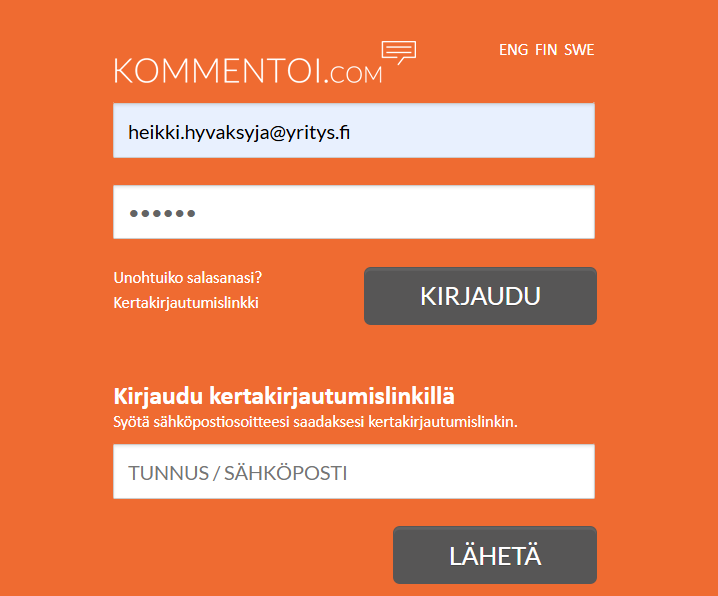
Login to the service
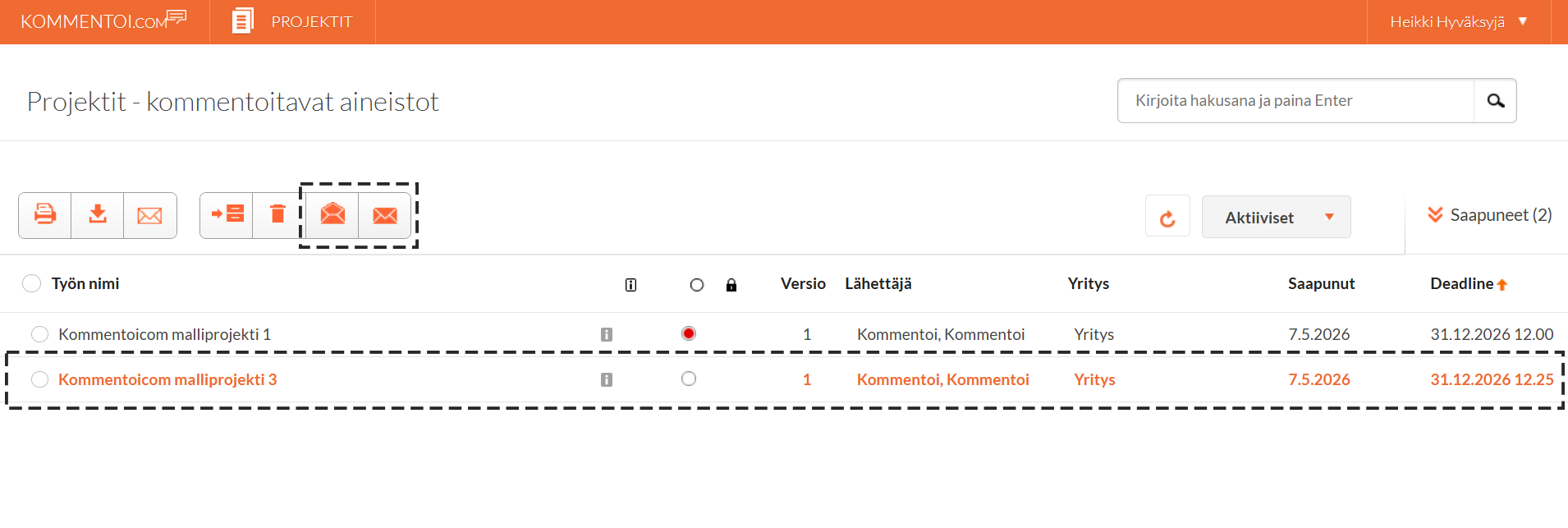
 Comment, accept or reject
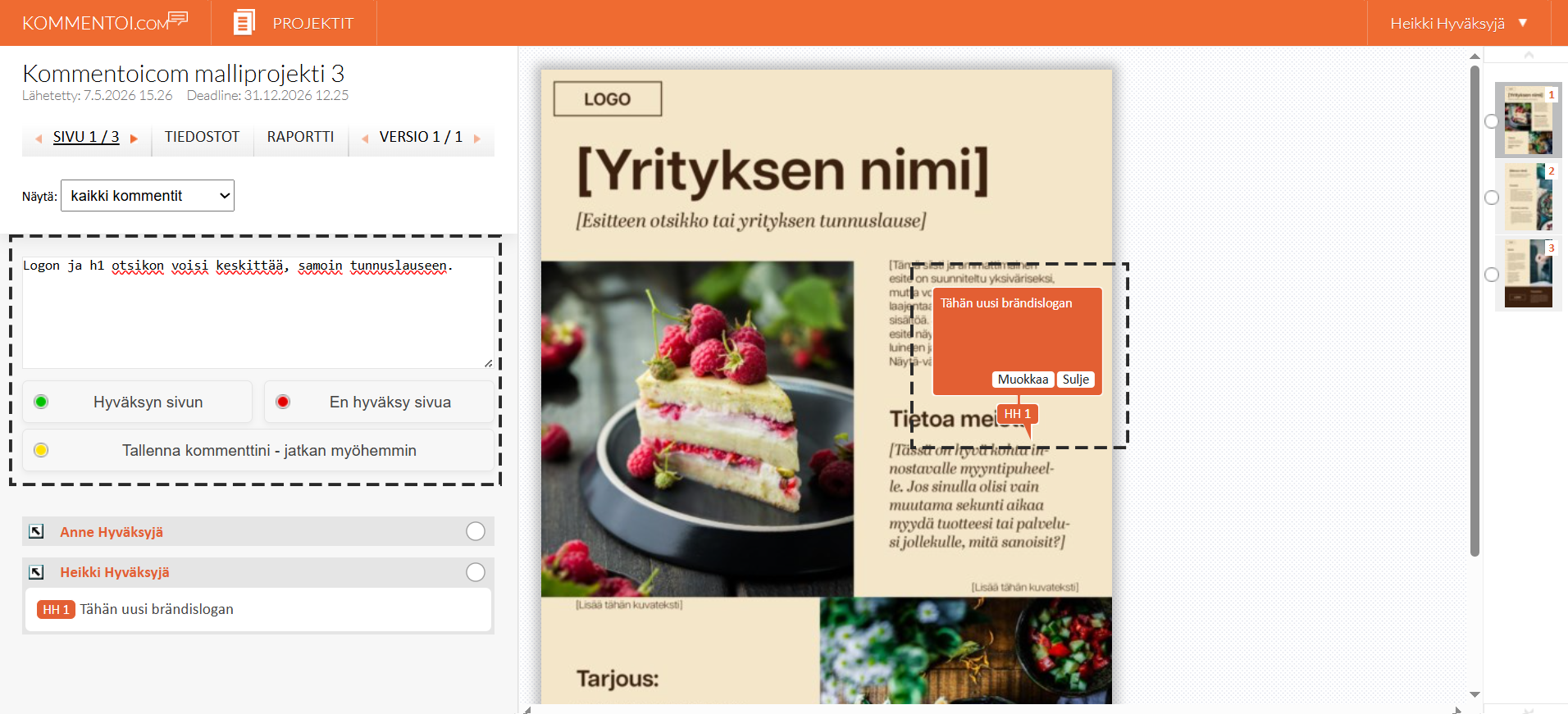
Adding, Moving, and Deleting Comments and Comment Arrows
(Comment arrows are not available for video materials.)
At the top of the comment list in the left-hand panel, there is a text field for your general comments regarding the page. Use this field for comments that are not related to any specific area of the image.
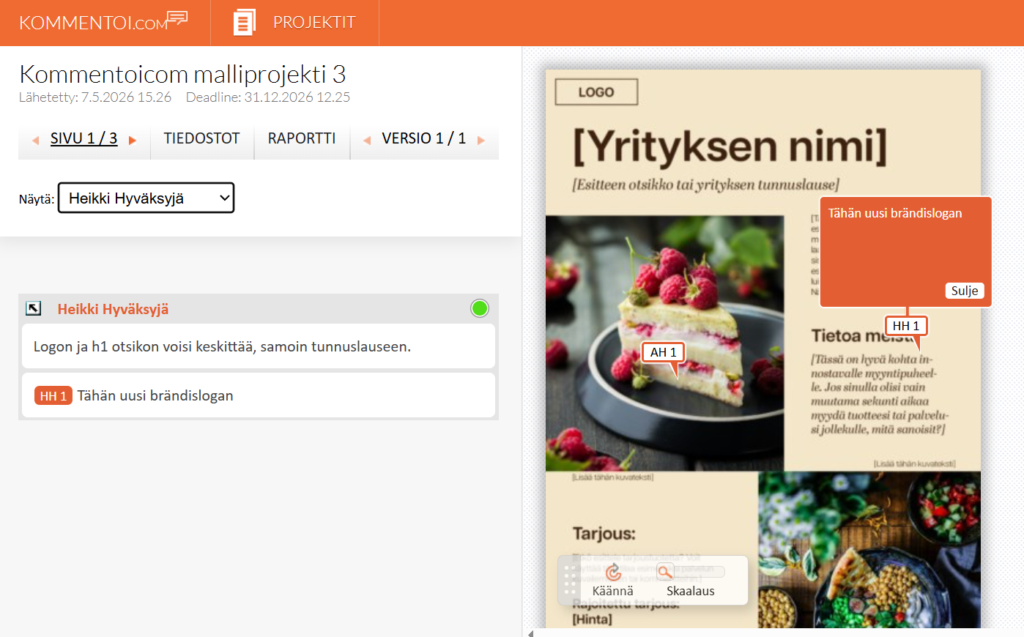
You can also mark a specific area in the image by clicking on it. A numbered comment arrow will be added to the selected location, and a text field for comments related to that area will automatically open.
You can easily move a comment arrow by clicking and dragging the arrow icon to the desired location.
To delete a comment arrow, double-click the numbered part of the arrow icon, or use the Delete function while editing the comment.
Approve a page only if you do not want any changes to be made to it. Approving a page locks the page, and the approval is immediately published to the sender of the material.

Select Do not approve page if you are adding corrections or change requests to the page.
Rejecting a page locks the page, so make sure to enter all your comments at the same time. The rejection and its comments are immediately published to the sender of the material.

If you want to continue commenting later, save your comments using the Continue commenting later option. Please note that in this case your comments will not yet be visible to the sender of the material. You must approve or reject the page before your decision and comments are published to the sender.
With the additional intermediate save option for comments, you may also choose to make your comments visible to other members of the workgroup, communicate with the workgroup, and then make the final decision to approve or reject the page.

 Back to the project list
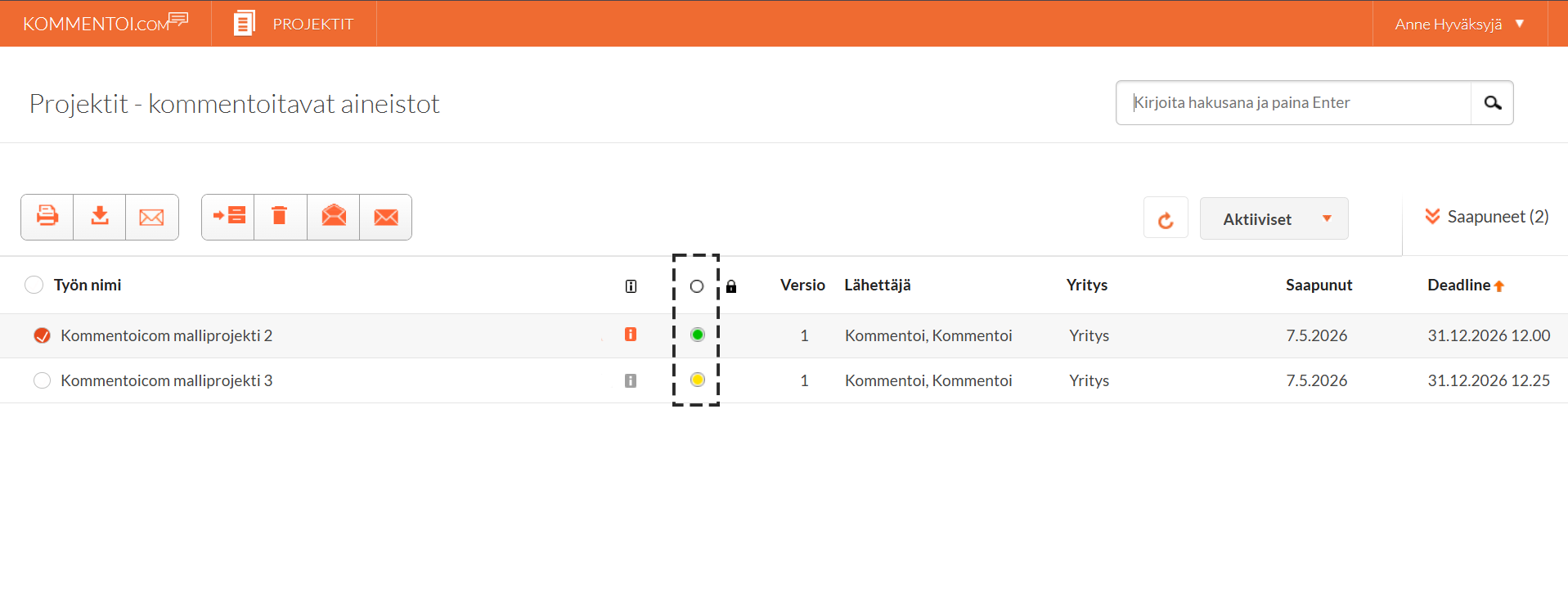
From the status icon in the project list, you can see your status for each project:
 – you have not started commenting
 – commenting is in progress (at least one page has not yet been processed)
 – you have commented on the entire project and rejected at least one page
 – you have commented on the entire project and approved all pages
 – you are included in the project as a recipient only, without commenting rights or obligations
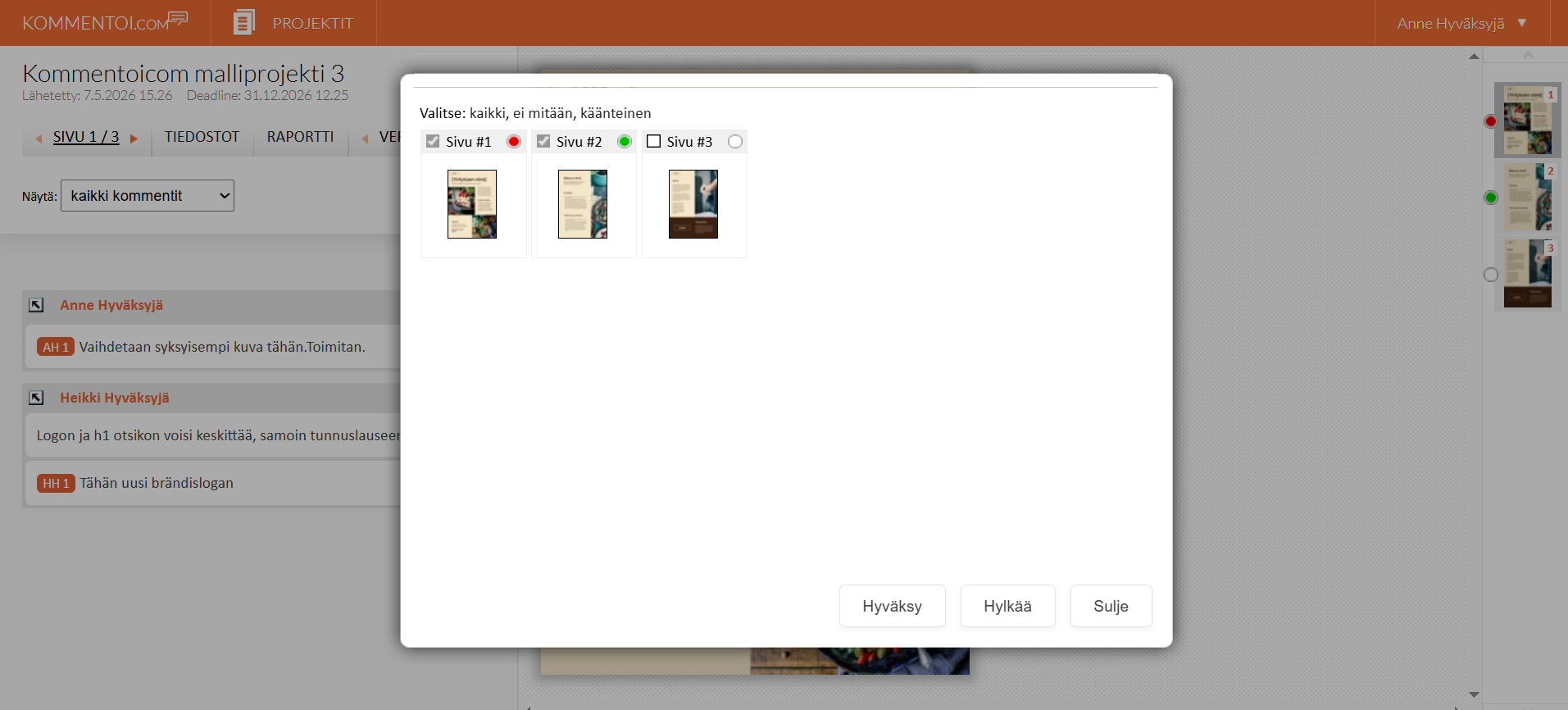
Please note that, to ensure a smooth workflow, it is recommended that you also approve pages that may not specifically be your responsibility, so that projects do not remain unfinished. You can approve multiple pages at once using the All Pages function, which opens by clicking the underlined text in the page selection area.

Page selection

Versions

Rotate

Zooming

Comment filtering


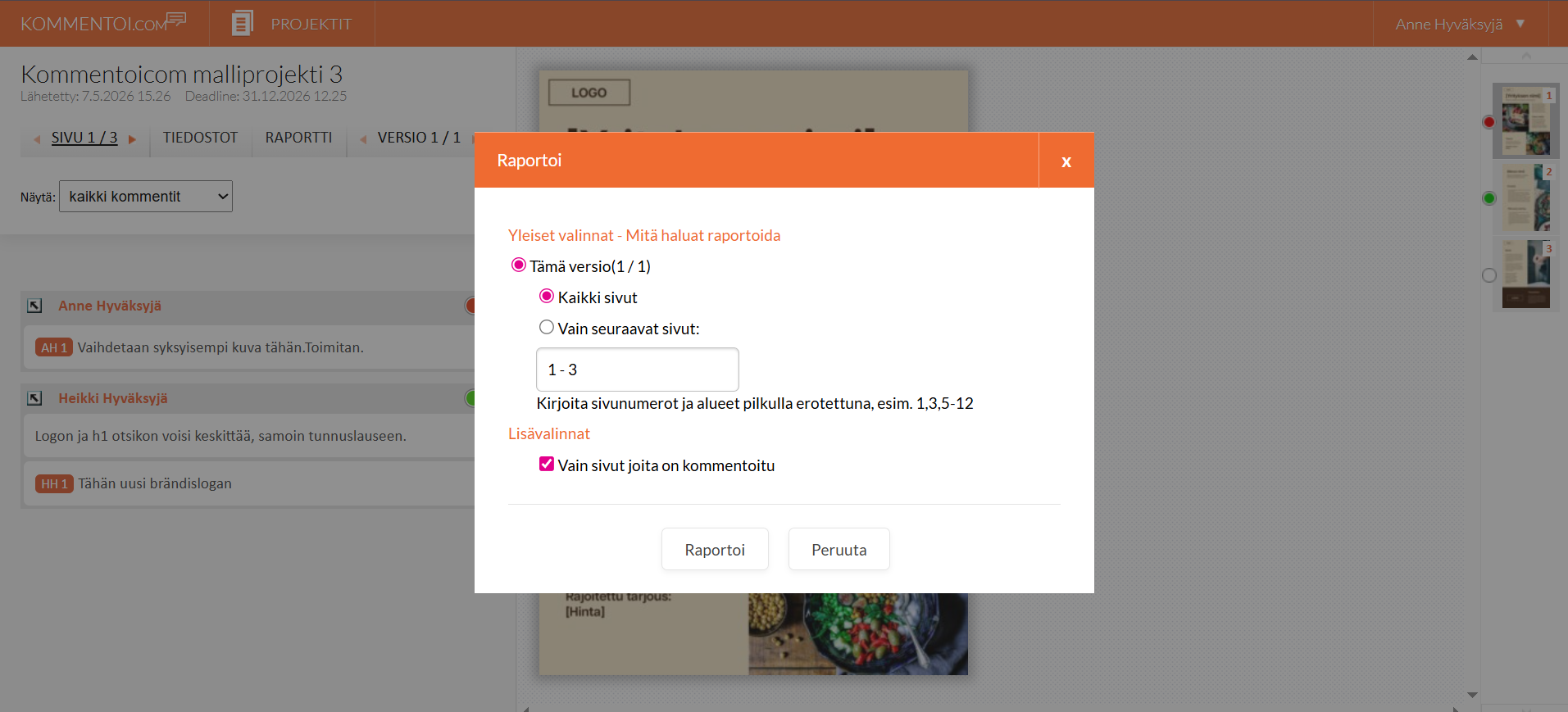
Page management
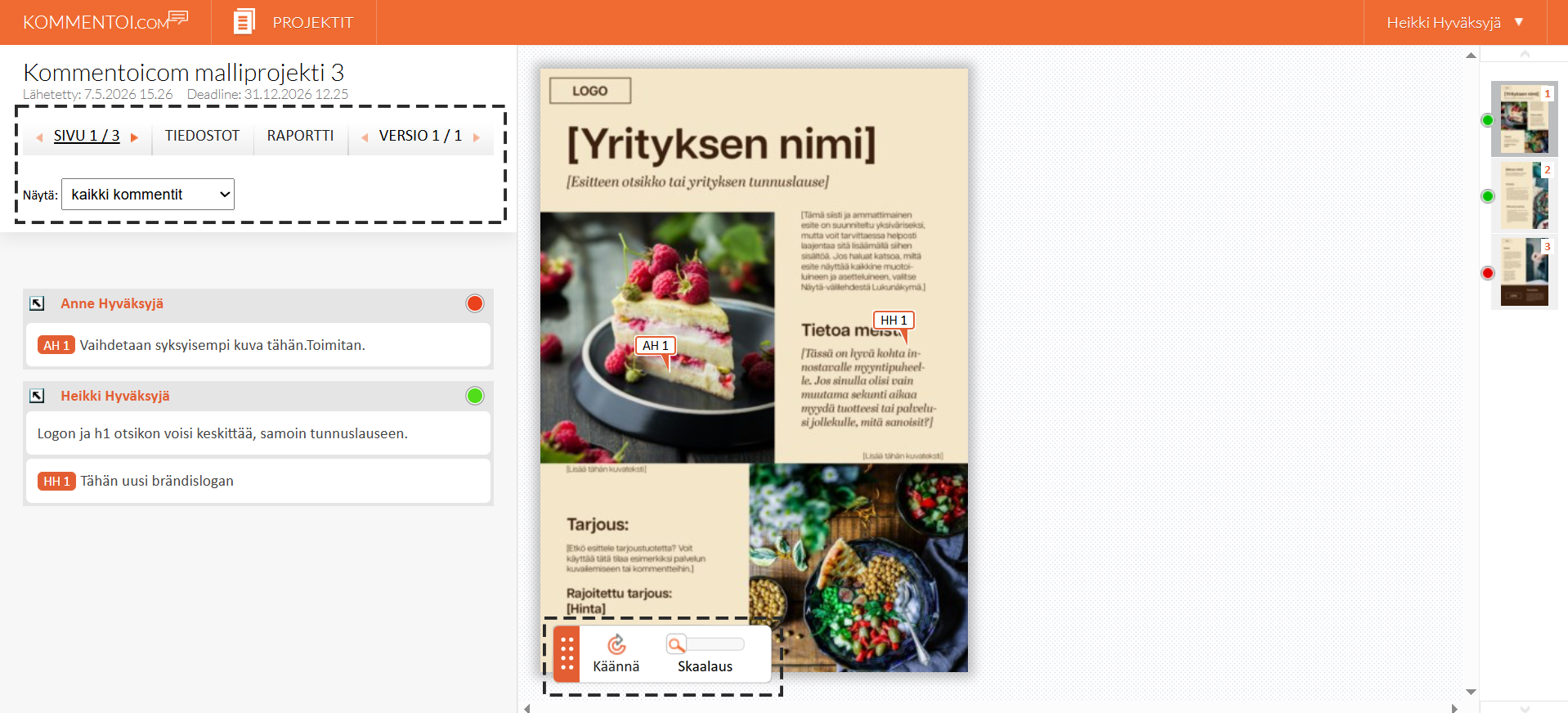
Browse project pages. You can also select the page you want directly from the page icons on the right side of the view.
– page is not commented – you have accepted the page – you have rejected the page
The status of workgroup members is shown by the icon displayed next to each name:
– the person has not commented on the page – the person has approved the page – the person has rejected the page – the person is included on the page as a recipient without commenting rights
View comments added by other workgroup members. Move the cursor over the comment numbers to see the area of the material to which the comment refers, or move the cursor over a comment arrow in the material to see the related text comment.
If the comment arrows obstruct the material and make it difficult to review, you can hide the comment arrows of an individual commenter by clicking the arrow next to the workgroup member’s name.
Comments are displayed in chronological order by default, with the newest comments shown first. At the bottom of the workgroup list, you can sort comments by date or alphabetically, or jump directly to the comments of a selected person.
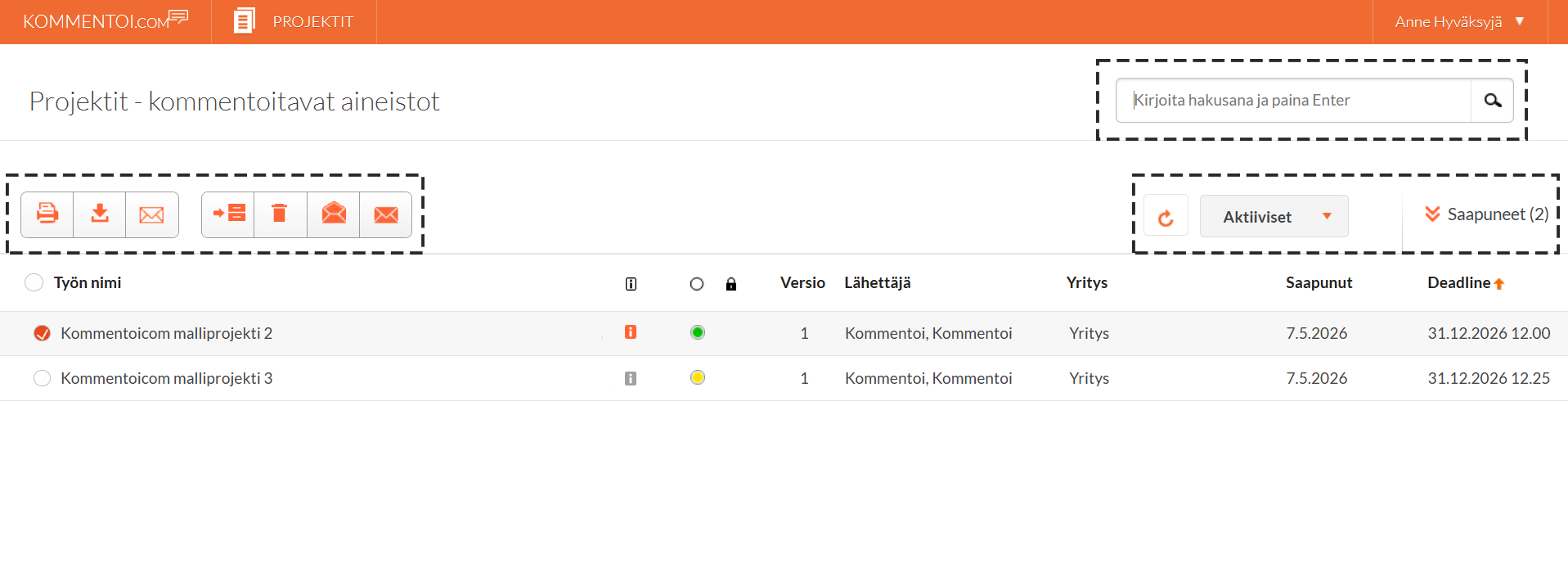

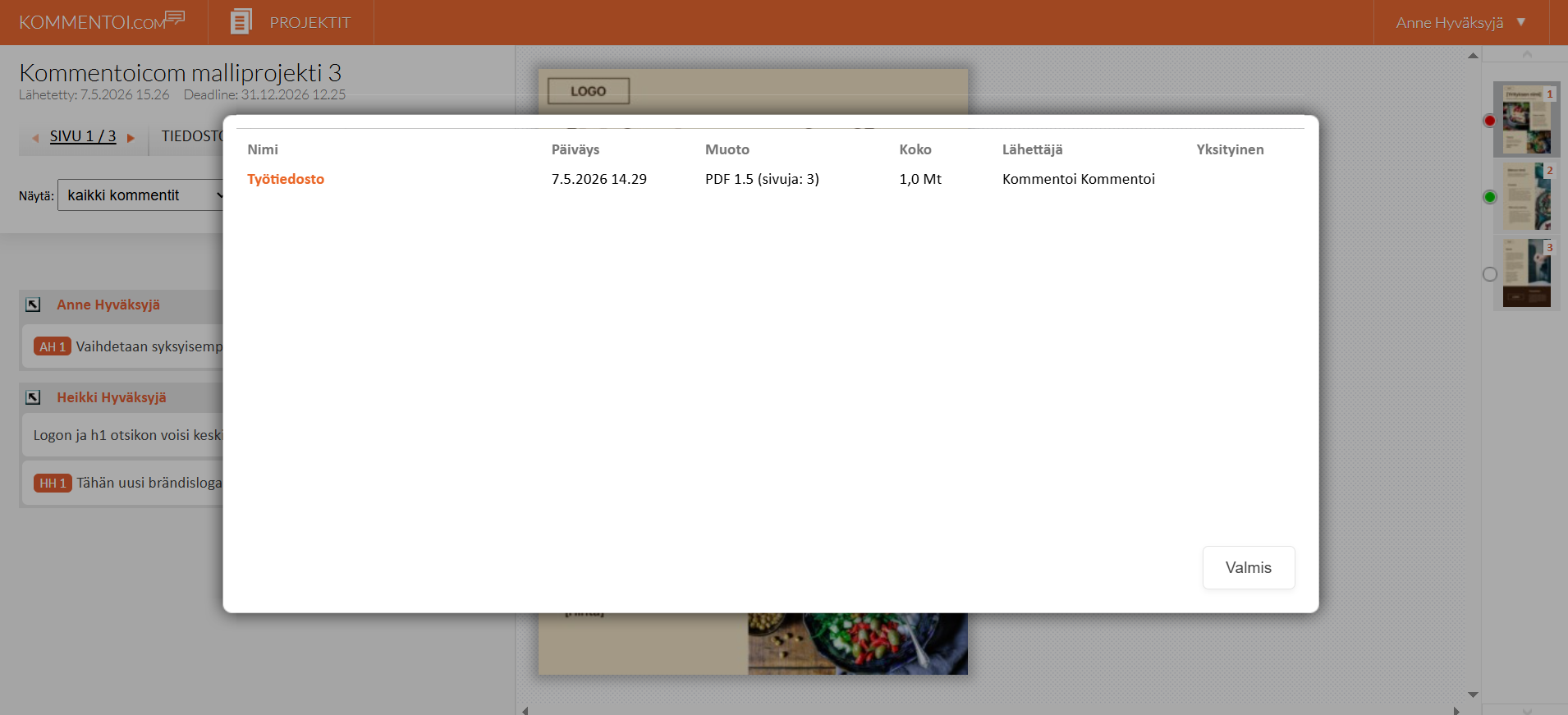
Files

Message

Archive

Delete

Mark as read / unread

Active / archived
Arrived

Search
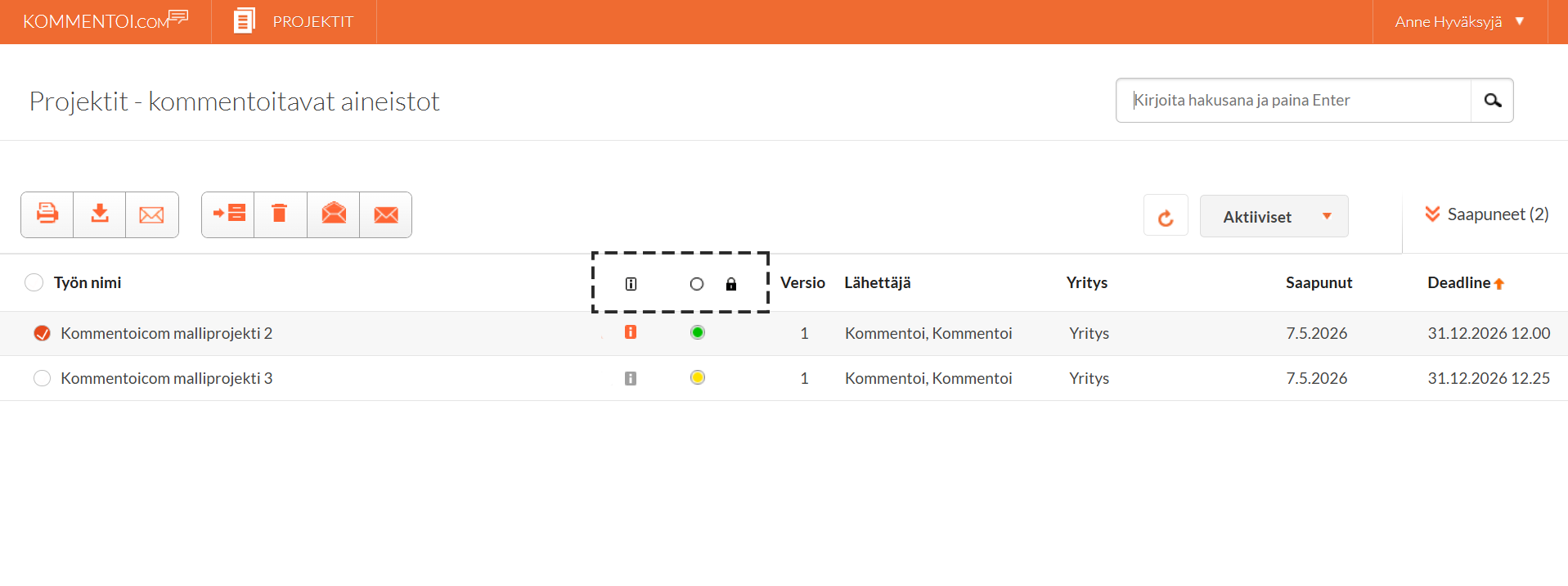

Info icon
Status icon
From the status icon in the project list, you can see your status for each project:
– you have not started commenting – commenting is in progress (at least one page has not yet been processed) – you have commented on the entire project and rejected at least one page – you have commented on the entire project and approved all pages – you are included in the project as a recipient only, without commenting rights or obligations

Project locked